Enabling Two-Factor Authentication
This article will show you how to set up two-factor authentication for your native user accounts in Cerberus FTP Server. As a user, you may also be forced by your site administrators to set up two factor authentication right from the Web Client log in page.
Step one:
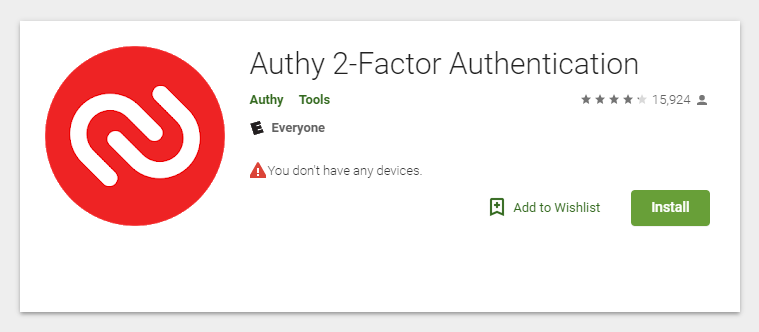
Download the authenticator app of your choice. We recommend either Google Authenticator, Authy, or the OTP Auth phone apps.
.png)
Step Two:
-
Login to your Cerberus web client account and go to the Accounts page.
-
Press the Enable Two Factor button.
-
A prompt will appear to inform you about what enabling two-factor authentication means and to ask you if you wish to continue. Press the Enable button.
-
A QR code will appear that you can use to enable two-factor authentication in a supported HOTP-compliant app.
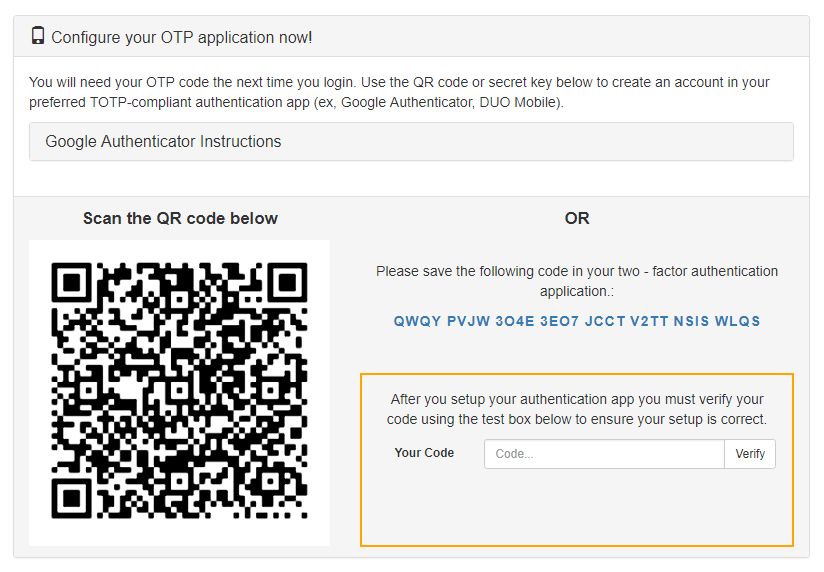
Using your authenticator app, scan the QR code from the account page.
OR
Enter the key code from the Cerberus account page into your authenticator app.
Step Three:
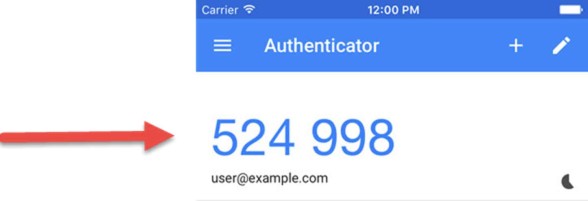
Your authenticator app should now display a six-digit one-time code. Enter your code in the text box and press the Verify button to verify your setup and activate two-factor authentication.
Note: If you leave the accounts page without verifying your setup then two-factor authentication will remain disabled
Two-factor authentication is now enabled!
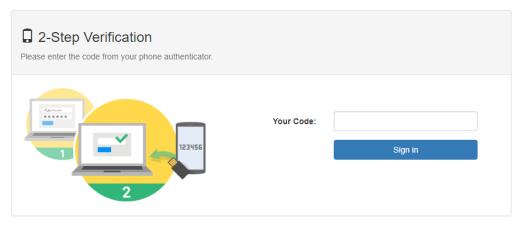
From now on, when you sign into the Web Client it will ask you for your 6-digit authentication code.
Simply open your authenticator app to find the code.
Common Issues
The most common reason for the two-factor authentication not working correctly is that the clock on your phone is inaccurate. Ensure that your phone clock is synced to your computer.
Cerberus is calibrated to allow some leniency with authentication codes, but a good rule of thumb could be to attempt to enter a new code as soon as it becomes available on your device. If this doesn’t work, waiting until the end of the code’s validity period is also sometimes helpful.
DUO Two Factor Authentication (2FA)
Cerberus Enterprise can also support for DUO Security for 2FA.
Cerberus FTP Server integrates directly with Duo Security for multi-factor authentication. Once enabled, all users who log in to Cerberus (via web client, FTP/S, SFTP, or FTPS) can be required to confirm their identity through Duo.
Duo’s policies let administrators fine-tune how and when 2FA applies, making it possible to treat internal, remote, and external users differently without modifying Cerberus user records individually.
Enabling Duo in Cerberus
In the Cerberus Web Admin Console, go to:
-
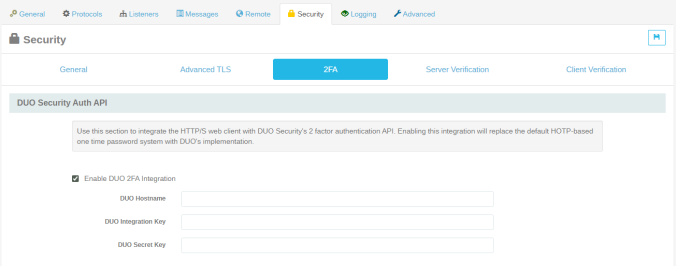
Server Manager → Security → Two-Factor Authentication (2FA).
-
Check Enable Duo 2FA Integration.
-
Enter the following values from your Duo Admin Panel → Applications → Protect an Application:
-
Integration Key (ikey)
-
Secret Key (skey)
-
API Hostname
-
-
Save the settings and test a login for a sample user.
-
Cerberus will now trigger Duo authentication for each user after their normal password validation.
Configuring Duo Policies for Cerberus Users
Duo allows creating policies that determine whether users:
-
Must complete 2FA.
-
Can bypass 2FA.
-
Are allowed only from specific IP ranges or locations.
These policies apply globally, per the Cerberus integration with the application, or to Duo user groups and directly affect how Cerberus handles login challenges.
Mapping Duo Policies to Cerberus Scenarios
| Cerberus User Type | Example Use Case | Recommended Duo Policy Behavior | Effect in Cerberus |
| Internal Staff (Office Network) | Users logging in from corporate LAN | Add office subnet to Authorized Networks; optionally bypass 2FA for trusted IPs. | Users on the corporate network log in with only username/password. Others will see the Duo prompt. |
| Remote Employees | Working from home or VPN | Require 2FA; optionally restrict to known VPN IPs | After password, Duo prompt appears every login unless connected via VPN |
| External Partners / Clients | Limited temporary access | Use “Bypass 2FA” or restrict by IP; optionally “Allow access without MFA” | Duo either skips 2FA or denies access if not from partner IP |
| Admin / High-Privilege Accounts | System administrators | Enforce 2FA on all networks; deny from unknown IPs or countries | 2FA always required; access denied from outside trusted IPs |
| Service / Automation Accounts | Accounts used for scripts, not humans | Mark user as Bypass user in Duo | Script logins not interrupted by Duo prompts |
Duo Policy Options That Impact Cerberus
Authorized Networks
-
Define trusted IP ranges or subnets.
-
Logins originating from these networks can bypass Duo 2FA.
-
Ideal for allowing internal LAN or VPN connections without prompts.
-
Example:
10.0.0.0/16 (HQ LAN) or 192.168.50.0/24 (VPN)
-
For more information see Duo Policy – Authorized Networks.
Note: If the connecting client’s IP matches an authorized network, the Duo step will be skipped — users will see only the Cerberus password prompt.
Bypass Users
-
Duo allows marking specific users or groups as Bypass.
-
These users will not be challenged by 2FA, regardless of policies.
Note: Cerberus treats the login as if Duo were disabled for those users — useful for automated system accounts, scheduled transfers, or testing environments.
New User Policy
-
Controls how users who haven’t yet enrolled in Duo behave.
-
Options include “Require Enrollment,” “Allow Access Without MFA,” or “Deny Access.”
Note: If set to Require Enrollment, new users must complete Duo setup before logging in successfully. If Allow Access Without MFA, they can log in normally while enrollment is pending.
Authentication Policy
-
Determines whether 2FA is enforced, bypassed, or denied.
-
Example Settings:
-
Enforce 2FA: Applies MFA challenge to all logins (recommended).
-
Bypass 2FA: Skip MFA for low-risk users.
-
Deny Access: Block logins entirely from selected groups or locations.
-
Note: Directly affects the post-password authentication flow — whether Duo’s prompt is shown, skipped, or access is denied.
Authorized User Locations (Geo Policy)
-
Restrict logins based on the country or region of origin.
-
Example: Allow logins only from US and Canada.
Note: If a user connects from a non-allowed region, the authentication will fail before the Duo prompt.
Example Configuration Scenarios
Scenario 1 – Internal Staff
-
Authorized Networks: 10.0.0.0/16
-
Authentication Policy: Enforce 2FA outside that subnet
-
Effect: Internal users on LAN log in directly; remote users get Duo prompt.
Scenario 2 – Remote Employee
-
Authorized Networks: VPN subnet only
-
Authentication Policy: Enforce 2FA
-
Effect: Duo prompt appears on login; blocked if connecting from unknown IP.
Scenario 3 – External Partner
-
Authorized Networks: Partner IP range
-
Authentication Policy: Bypass 2FA
-
New User Policy: Allow access without MFA
-
Effect: Partner users connect only from defined IPs, no Duo prompt.
Scenario 4 – Admin Accounts
-
Authentication Policy: Enforce 2FA
-
Authorized Networks: Only HQ subnet
-
Effect: Admins must complete Duo every login; denied from any other network.
Maintenance Tips
-
Test each policy with a sample Cerberus user before roll-out.
-
Maintain a “bypass” list for automation accounts separately.
-
Document authorized network ranges clearly — including VPN and NAT IPs.
-
Review Duo policy logs periodically to verify expected behavior.